|
|
PMVRTM - Patented Mappable VR
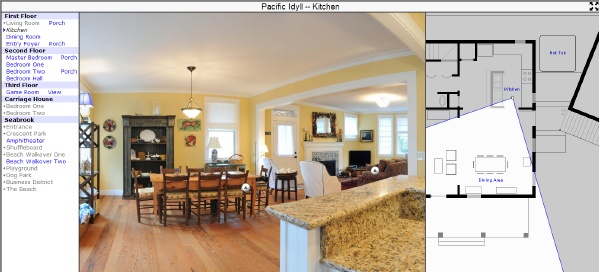
PMVR displays high resolution panoramic images and digital photos in
web pages -- with an optional map/floorplan -- on web sites, demo CD's, Kiosks,
etc.
Full Screen Mode:
New to PMVR v6 is a unique 'Full Screen Mode', which displays
panoramas utilizing the full computer screen. Just right click on any panorama displayed
with PMVR v6 to obtain a context menu and select the new 'Full Screen Mode' option.
Excellent performance, even with large 2560 x 1600 computer displays.
Large Panorama Example
Fast Performance: PMVR works very well, even on the older and slower computers
which your clients may be using, especially when in the new Full Screen mode. Our
smoothing image scaler is always running, so there is never any shimmering in the image.
Avoid other panorama viewers that turn off smoothing during image scrolling (resulting in
shimmering), and only turn on smoothing once the panorama motion has fully stopped.

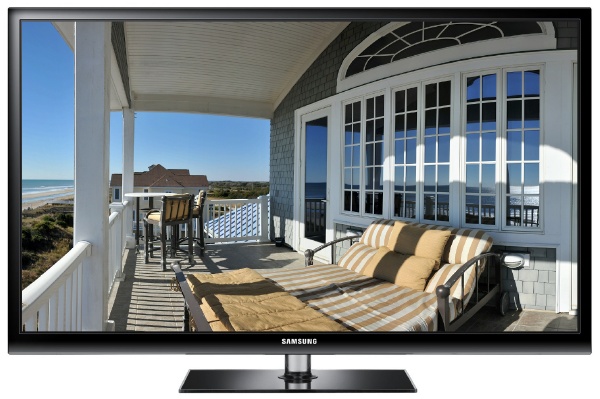
PMVR Full Screen mode on an HDTV monitor
|
No Shimmering:
PMVR has a high-performance high-quality image scaler built in. This
allows for panoramas of any size (subject to Java applet memory limits) to be
displayed with no shimmering artifacts, even when fully zoomed into
the image or displayed fullscreen.
It also means that a panorama larger than the viewer window can
be displayed -- and automatically initially viewed zoomed out.
Large Panorama Example
Patented Floorplan:
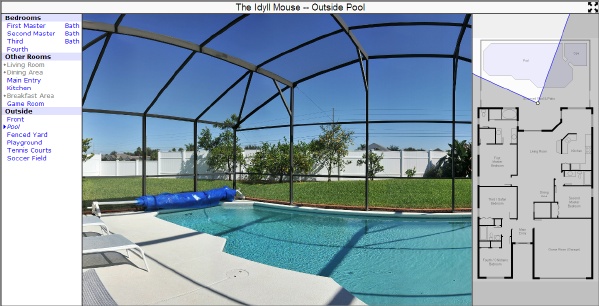
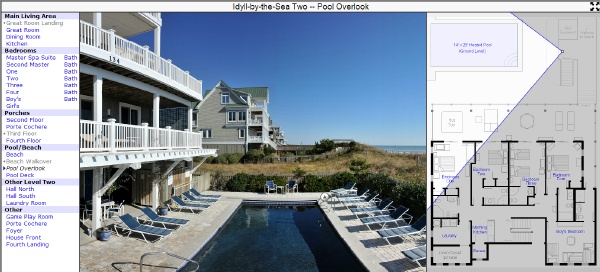
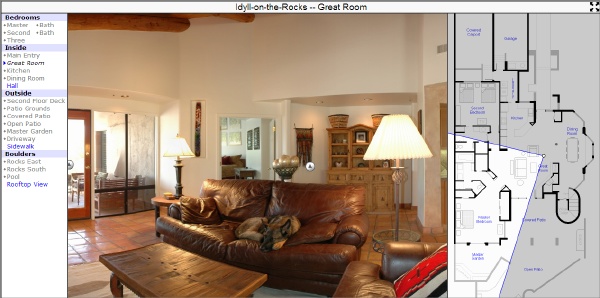
PMVR is a unique panoramic viewer, displaying an optional 'FloorPlan' applet,
which greatly enhances a viewers ability to walk through a 'mappable' environment
and understand 'direction'. We have
patented (view patent document)
this Floorplan/Map technology.
No Programming:
No programming experience is required to use PMVR.
The Virtual Tour Editor authoring tool
takes care of all the hard work.
Highly Customizable:
PMVR was originally designed as a highly customizable alternative
to Apple's QTVR. The advantage of PMVR is that it is a very small,
incredibly fast, and runs on any platform in any web browser
that supports Java (all modern web browsers actively support Java
out of the box).
In fact, PMVR compensates for bugs in older Java versions, which allows
it to run great even in older web browsers. However, using recent
browsers is always recommended due to the security and speed improvements
they offer.
Fast 'Full Screen Mode' shows panoramas filling the entire computer screen, even large 2560 x 1600 displays
- Virtual Tour authoring tool makes creating complex tours very easy
- Unique Map/FloorPlan support which we have patented.
- Easiest way to add panoramas to web pages and CDs -- quick start [§4]
- High-quality image scaler supports panoramas of most any size
- Ability to zoom into images revealing more and more detail
- Incredibly fast flicker-free and smooth image updates
- Flexible hot spot regions: polygon, rectangle, circle, and x-axis region
- Hot spots can launch new web pages or call your Scripting functions for custom programmed actions! -- url-target [§5]
- Extensively tested for maximum compatibility with all major browsers
- Controls automatically appear/hide -- easy to use and it makes panoramas look great
- JPEG files can be encrypted to prevent casual stealing of your panoramas
- Fully controllable via Native or JavaSciprt Scripting -- details [§6]
- Small Java applet automatically loads quickly
- Viewer is cross-platform via Java-enabled web browsers
Click on one of the following tours to view a virtual tour that uses PMVR:
In most virtual tours that use the floor plan applet,
a large shared image for the floorplan will be used.
For example, 10 panoramas may all use the same floor plan image.
The only thing that needs to change from
one panorama to the next is the "x" and "y" standing position on the
floor plan image. The floorplan applet will automatically shift the
image to center the "x" and "y" standing position.
For help in understanding how the <APPLET> tag above works
for embedding Java applets in HTML, check out the
Java Applet Tag Reference.
For many other examples and ideas, check out the
selected sites using PMVR [§11]
section to see how other PMVR customers are using PMVR.
|
NEW: Run the new VirtualTourEditor.exe
virtual tour authoring tool
(in the trial download) to quickly create professional virtual tours with
multiple nodes and floorplan/map images -- all with hotspots.
|
|
Do you already have a panoramic image to display? If not, the
creating panoramas [§5] section
below will help you get started. Or use this
sample image (saving it to your
hard disk drive).
Next, when you have a panoramic image to display, place it into a
directory with an HTML file (that you create yourself, or by using an
HTML editor) and add the following HTML code into the body of the document:
<applet archive="pmvr.jar" code="pmvr.class" width=500 height=300>
<param name="image" value="yourpan.jpg">
<param name="view" value="360">
</applet>
|
|
Make sure that you change the 'height' listed above in blue to match the
height of your panoramic image (not absolutely required, but recommended)
and that you change 'yourpan.jpg' listed above in blue to be the name
of your saved panoramic (required). If your panoramic image is not a full
360 degree image, you can remove the 'view' param line above.
Finally, place the pmvr.jar file (from the
download [§11]) into this same directory and you are done!
View your HTML file in your web browser and you will see your panorama.
Simply place your files in a folder on a floppy or CD and mail your
panoramas to anyone (all they need is a web browser). Or place your files
on a web server for everyone to see.
Want to add a floorplan? If you do not have a floorplan or map image,
just use this sample floorplan, saving
it to your hard disk drive. Then in the same HTML document that you added
the panorama to above, add the following HTML code after the pmvr applet:
<applet archive="pmvr.jar" code="FloorPlan.class"
name="FloorPlan" width=205 height=300>
<param name="image" value="yourplan.gif">
<param name="x" value="100">
<param name="y" value="492">
</applet>
|
|
Just make sure to change the FloorPlan applet width (205) and height (300)
to a good size and change 'yourplan.gif' to match the name of your
floorplan. Next, change the 'x' (100) and 'y' (492) parameters to reflect
the location on the floorplan where the panorama was captured. View
the HTML until you are happy with the settings -- but the FloorPlan hilight
will not appear, just the hilight dot. The final step to adding FloorPlan
support is to add a pixdeg param into the above pmvr applet, which
will make the FloorPlan hilight appear and work. For example, add the
following into the pmvr applet (note: the pmvr applet,
not the FloorPlan applet):
<param name="pixdeg" value="0=90,2000=90">
|
|
Where you replace 2000 with the pixel width of your panorama. While
this is not the pixdeg that you will finally use,
you should be able to see a FloorPlan highlight on your floorplan. Now use the
PMVR 'pixdeg' Tutorial to learn how to set up
a pixdeg for your panorama.
|
5. PMVR and FloorPlan Applet Parameters
|
|
|
Advanced Topic: The
Virtual Tour Editor
will automatically configure and set most of these paramaters for you. This
entire section is now provided for advanced users who want to
fully customize their tours.
|
The following tables describe all of the parameters that the pmvr and
FloorPlan applets can use. Please do not be overwhelmed by the number of
parameters as only a couple are absolutely required. The many optional
applet paramaters are there to allow you to customize the applet, should
you need to. For example, take a quick look at the
example above [§3]
and how just a couple of parameters were needed.
Parameters are defined within the
<APPLET> tag
and each defined parameter looks like:
|
<param name=name value=value>
|
|
Where the possible name/value are
described in the tables below.
Click on an applet parameter name in the following tables for a detailed
description of that applet parameter. Note that many applet parameters
were added in later versions (specified in brackets). You will be able to use
all applet parameters if you are using the latest version.
For the pmvr applet, only the image parameter is required.
If the image you are viewing is a 360 make sure that you use the
view parameter set to 360. The basic PMVR parameters
are:
| Basic PMVR Java Applet Parameters |
| name | value | Description |
| image | URL |
The URL to a panoramic image (JPG) to display (sample image)
|
| view | Integer |
The panoramic image width, in degrees (1-360).
|
| auto | Integer |
Horizontal auto scroll one pixel every specified number of milliseconds
|
| center | Integer |
Initializes viewing centered (horizontal) at this pixel location
|
| pixdeg | pixdeg-spec |
For use with the FloorPlan applet to specify viewing direction
|
| delay | Integer |
Delay in milliseconds before auto scrolling restarts (default: 30000) [2.3b]
|
To use the FloorPlan applet, you must use the pixdeg
parameter in the pmvr applet--this signals the pmvr applet to
look for and use the FloorPlan applet. In the FloorPlan applet,
the image, x, and y parameters are required.
The basic FloorPlan parameters are:
| Basic FloorPlan Java Applet Parameters |
| name | value | Description |
| image | URL |
The URL to a floor plan image (GIF/JPG/etc) to display
(sample image)
|
| x | Integer |
The X (horizontal) pixel location on map where hilight arc is centered
|
| y | Integer |
The Y (vertical) pixel location on map where hilight arc is centered
|
In most situations, you will only need the parameters described
in the basic parameters tables above. However, if you need to
customize the applet by using hot spots, add scripting, customize
colors, and many more options, then review the following advanced
applet parameters:
| Advanced PMVR Java Applet Parameters |
| name | value | Description |
| script | file-ref |
Runs the given script [4.0a]
|
| vauto | Integer |
Vertical auto scroll one pixel every specified number of milliseconds [2.3a]
|
| centerto | Integer |
Smooth scrolls until centered (horizontal) at this pixel location [4.0a]
|
| vcenter | Integer |
Initializes viewing centered (vertical) at this pixel location [2.1d]
|
| links | file-ref |
The URL to links (hot spots), where each line is a link-spec [2.2a]
|
| link# | link-spec |
Creates a linkable hot spot (an alternative to the links file)
|
| hover | String |
Is hot spot hilight displayed as user hovers [yes/no] (default: no) [3.0a]
|
| ll | ll-spec |
Links pmvr hot spots to FloorPlan hot spots [3.0a]
|
| floorplan | String |
The FloorPlan applet name (default: FloorPlan)
|
| logo | URL |
The URL to a logo image to display at startup [2.2a]
|
| logotime | Integer |
The time in milliseconds to display the logo (default: 5000) [4.0a]
|
| spot | URL |
The URL to a GIF image, which overlays all hot spots[5.0a]
|
| arrows | String |
Are left/right scroll arrows displayed [yes/no] (default: yes) [2.3b]
|
| zoom | String |
Is zoom control displayed [yes/no] (default: yes) [2.4a]
|
| showlinks | String |
Links (hot spots) to highlight [yes/no/{list}] (default: no) [3.0d][5.0a]
|
| js | String |
JavaScript code to run at applet startup [3.1a]
|
| foreground | hex-color |
Color of applet text (default black: 000000) [5.0a]
|
| background | hex-color |
Color of applet background (default light gray: F0F0F0) [2.1c]
|
| cHelp | hex-color |
Color of help boxes (default light yellow: FFFFC0) [2.4a][5.0a]
|
| cArrow | hex-color |
Color of left/right arrows (default yellow: FFFF00) [2.4a][5.0a]
|
| cZoom | hex-color |
Color of zoom circle (default light green: 40FF40) [2.4a][5.0a]
|
| cHot | hex-color |
Color of hot spot hilight (default yellow: FFFF00) [2.5a]
|
| cSlider | hex-color |
Color of the zoom slider (default: FFFFFF,404040,0000FF) [5.0a]
|
| cLoading | hex-color |
Color of the 'loading' percent text (default: 808080) [5.3a]
|
| zMax | Integer |
Maximum zoom-in as a percentage: 200=x2, 250=x2.5 (default: 400)
|
| font | type-spec |
English font/face name, size, and style
|
| face | type-spec |
I18N font/face name, size, and style
|
| key | String |
Mimics the user pressing a key on the keyboard (1st char in string) [4.0a]
|
| skin | URL |
A 2x2 (corners) Image: creates a 'frame' inside the display [5.2a]
|
| loading | String |
Initial 'Loading' message (default: $0%) [5.3a]
|
| fullscreen | String |
Allows 'Full Screen Mode' to be scripted [yes/no] [6.0a]
|
| play | URL |
Plays the specified sound file [6.3a]
|
| Advanced FloorPlan Java Applet Parameters |
| name | value | Description |
| script | file-ref |
Runs the given script [4.0a]
|
| links | URL |
The URL to links (hot spots), where each line is a link-spec [2.2a]
|
| link# | link-spec |
Creates a linkable hot spot (an alternative to the links file) [2.1e]
|
| hover | String |
Is hot spot hilight displayed as user hovers [yes/no] (default: no) [3.0a]
|
| ll | ll-spec |
Links FloorPlan hot spots to pmvr hot spots [3.0a]
|
| spots | URL |
The URL to a overlay/spots file, where each line is a spot-spec [3.0a]
|
| spot# | spot-spec |
Creates an image overlay/spot (an alternative to the spots file) [3.0a]
|
| gray | Integer |
The percentage amount to gray the non-'hilight arc' (default: 20) [3.0b]
|
| cGray | hex-color |
The color (hue) for the FloorPlan highlight (default: 000000) [6.5a]
|
| showlinks | String |
Are all link (hot spot) areas hilighted [yes/no] (default: no) [3.1a]
|
| js | String |
JavaScript code to run at applet startup [3.1a]
|
| foreground | hex-color |
Color of applet text (default black: 000000) [5.0a]
|
| background | hex-color |
Color of applet background (default gray: C0C0C0) [2.1c]
|
| cHelp | hex-color |
Color of help boxes (default light yellow: FFFFC0) [2.4a]
|
| cLine | hex-color |
Color of hilight lines (default blue: 0000FF) [2.4a]
|
| cDot | hex-color |
Color of hilight dot (default yellow: FFFF00) [2.4a]
|
| font | type-spec |
English font/face name, size, and style
|
| face | type-spec |
I18N font/face name, size, and style
|
| key | ascii-code |
Mimics the user pressing a key on the keyboard [4.0a]
|
script --
<param name="script" value="script.exe:gotoKitchen">
-- Please refer to the
Native Scripting Manual
for complete details on how to use scripting in any Duckware applet.
Native scripting allows multiple applets parameters to be set via a script.
image --
<param name="image" value="pano.jpg">
-- The image parameter value is a URL to an image (JPG/GIF/etc) on
the web server. It can be an absolute URL
(eg: http://www.xyz.com/pano.jpg) or a relative URL
(eg: pano.jpg), but is almost always a relative URL (as this
allows most web sites to be placed on CD for demonstrations), relative
to the HTML document URL.
Please note that this URL is subject to the
Java Applet Security Model.
This parameter is mandatory and must be set.
x,y --
<param name="x" value="100"><param name="y" value="492">
-- The x and y FloorPlan parameter values specify the x and y pixel location,
on a map image, where the hilight dot is drawn.
This x, y position on the map image is where
the hilight lines radiate from and say
"I was standing here when the panorama was captured".
In most cases, the underlying map image is larger than the applet viewable
area (because it is shared between many panoramas), so the applet will
attempt to center the x,y position within the applet viewable area.
These parameters are mandatory and must be set when the FloorPlan applet is used.
view --
<param name="view" value="360">
-- The view parameter value is an integer that specifies the how many degrees
the panoramic images covers (1-360). When set to 360, PMVR will allow
the image to be scrolled round and round. Otherwise, the image scrolling
will stop at the left and right edges of the panorama.
This parameter is optional and defaults to a non-360 setting.
auto --
<param name="auto" value="20">
-- The auto parameter value is an integer that specifies how many milliseconds
to wait before automatically scrolling the image (horizontal)
one pixel. The minimum value of this parameter
is 20 (milliseconds). The sign of this parameter controls scroll direction.
Positive scrolls right. Negative scrolls left. New to version 2.5c is
an optional 'multiplier' value that specifies how many pixels to scroll
every interval (the default is 1).
Just append an 'x' followed by a pixel count to the value. For example,
"20x5" will scroll the image right 5 pixels every 20 milliseconds (or about
1000/20 = 50 times a second). On a non-360 image, scrolling direction
will reverse when an image edge is encountered. Setting this parameter
to 0 will end scrolling. Please note that user
activity within the panorama will temporarily suspend scrolling for
delay milliseconds.
This parameter is optional and defaults to 0 (no scrolling).
vauto --
<param name="vauto" value="20">
-- The vauto parameter value is an integer that specifies how many milliseconds
to wait before automatically scrolling the image (vertical)
one pixel. The minimum value of this parameter
is 20 (milliseconds). The sign of this parameter controls scroll direction.
Positive scrolls down. Negative scrolls up. New to version 2.5c is
an optional 'multiplier' value that specifies how many pixels to scroll
every interval (the default is 1).
Just append an 'x' followed by a pixel count to the value. For example,
"20x5" will scroll the image right 5 pixels every 20 milliseconds (or about
1000/20 = 50 times a second). Scrolling direction
will reverse when an image edge is encountered. Setting this parameter
to 0 will end scrolling. Please note that user
activity within the panorama will temporarily suspend scrolling for
delay milliseconds.
This parameter is optional and defaults to 0 (no scrolling).
center --
<param name="center" value="1500">
-- The center parameter value is an integer that specifies the pixel location
on the panorama that should be centered (horizontal) in the display when the panorama
is first shown. This allows you to control what part of the panorama
the user sees first. Used mainly with horizontal panoramas.
This parameter is optional and defaults to pixel 0.
centerto --
<param name="centerto" value="1500">
-- The centerto parameter value is an integer that specifies
the pixel location on the panorama that PMVR should smoothly
(horizontal) scroll to.
This parameter is optional and normally only set via scripting.
vcenter --
<param name="vcenter" value="150">
-- The vcenter parameter value is an integer that specifies the pixel location
on the panorama that should be centered (vertical) in the display when the panorama
is first shown. This allows you to control what part of the panorama
the user sees first. Used mainly with vertical panoramas.
This parameter is optional and defaults to pixel 0.
links --
<param name="links" value="firstfloor.links">
-- The links parameter value is a URL (absolute or relative) to a
file, where each line in the file is a link-spec
(how hot spots are defined) -- example links file.
If the
same hot spots will be used over and over (as they usually are on a
FloorPlan image), pointing to a file (with hot spot definitions) is
much easier to than having to specify them everywhere they are needed
through the link# parameter.
Please note that this URL is subject to the
Java Applet Security Model
and relative to the HTML document URL.
This parameter is optional and defaults to no links specified.
link# --
<param name="link0" value="300,100,50,kitchen.html,Kitchen">
-- The link# parameter value is how a link-spec (hot spot)
is added. Just continue to number them for as many links (hot spots) as you
need to define, starting at 0. For example, link0, link1, link2, ..., link10,
link11, etc.
These parameters are optional.
hover --
<param name="hover" value="yes">
-- The hover parameter value controls whether or not a hot spot
hilight is displayed as the user hovers (moves the mouse) over a hot spot.
Since the hot spot is visually hilighted for the user, you should
define the hot spots carefully and accurately.
This parameter is optional and defaults to "no" (hot spot hilights off).
ll --
<param name="ll" value="0=2,1=0">
-- The ll (linked links) parameter links hot spots in the current applet (pmvr or
FloorPlan) to hot spots in the other applet (FloorPlan or pmvr).
Please refer to the ll-spec for a detailed
description of this parameter. Often used with the
hover parameter.
This parameter is optional and defaults to no linked links.
spots --
<param name="spots" value="firstfloor.spots">
-- The spots parameter value is a URL (absolute or relative) to a
file, where each line in the file is a spot-spec
(how image/spot overlays are defined).
Please note that this URL is subject to the
Java Applet Security Model
and relative to the HTML document URL.
This parameter is optional and defaults to no spots defined.
spot# --
<param name="spot0" value="10,10,spot1.gif">
-- The spot# parameter value is how a spot-spec
(image overlay/spot) is defined. Image overlays can be very useful
because they allow you to modifty the look and feel of a FloorPlan image
without having to actually modify the FloorPlan image.
Just continue to number them for as many
spots as you need to define, starting at 0. For example, spot0, spot1,
spot2, ..., spot10, spot11, etc. These parameters are optional.
pixdeg --
<param name="pixdeg" value="0=14,570=96,1680=264,2304=14">
-- Please refer to pixdeg-spec for a detailed
description and tutorial on how to set this parameter value.
This parameter is required only if you use the optional FloorPlan
applet along with PMVR.
floorplan --
<param name="floorplan" value="FloorPlan">
-- The floorplan parameter value is the name that you assigned in the HTML to the
FloorPlan applet. In most cases, you will name the FloorPlan applet
"FloorPlan" as in name="FloorPlan", in which case this parameter
does not have to be specified. Use this parameter only if you name
the FloorPlan applet to anything other than "FloorPlan".
This parameter is optional and defaults to "FloorPlan". This parameter
is only typically used if you need more than one FloorPlan applet in
a single web page (because each FloorPlan requires a unique name).
logo --
<param name="logo" value="logo.gif">
-- The logo parameter value is a URL (absolute or relative) to an image,
usually a GIF, that is displayed
centered over the panorama for 5 seconds. This is very useful if you
need to display a company logo.
Please note that this URL is subject to the
Java Applet Security Model
and relative to the HTML document URL.
This parameter is optional and defaults to no logo.
logotime --
<param name="logotime" value="10000">
-- The logotime parameter value is an Integer that
specifies the number of milliseconds to display the
logo image.
This parameter is optional and defaults to 5000 (5 seconds).
spot --
<param name="spot" value="images/spot.gif">
-- The spot parameter value is a URL (absolute or relative) to an image,
usually a transparent GIF, which is displayed over all hot spots as an indicator
of where hot spots are located within a panorama. To change the spot image for a single
hotspot, refer to 'spot' attribute in a link-spec.
delay --
<param name="delay" value="15000">
-- The delay parameter value specifies how many milliseconds to wait before
auto scrolling (if configured by the auto param)
resumes. When a person interacts with a panorama,
auto and vauto
scrolling
will temporarily stop to allow the user to interact with the image. When there
has been no user activity for the number of milliseconds specified by this
parameter, auto scrolling resumes.
This parameter is optional and defaults to 30000 (30 seconds).
arrows --
<param name="arrows" value="no">
-- The arrows parameter value controls whether or not the left and right
scroll arrows are displayed over the panorama. If turned off (set to "no"),
the user can still drag within the panorama to move around.
Please note that the arrows already automatically hide if the mouse cursor
is not over the panorama.
This parameter is optional and defaults "yes" (on).
zoom --
<param name="zoom" value="no">
-- The zoom parameter value controls whether or not the zoom control is
displayed over the panorama. If turned off (set to "no"), the user can
still use the 'a' and 'z' keys to zoom in/out.
Please note that the zoom control already automatically hides if the
mouse cursor is not over the panorama.
This parameter is optional and defaults to "yes" (on).
showlinks --
<param name="showlinks" value="yes">
-- The showlinks parameter value controls whether or not all
link (hot spot) areas are hilighted. The primaray use of this
parameter is through Scripting control to provide a GUI to the user
to turn hilights on/off at any time - Example.
This parameter is optional and defaults to "no" (hilight off).
New to 5.0a is the ability to specify a comma separated list of
link numbers. For example, "0,3,5"
js --
<param name="js" value="pmvrup()">
-- The js parameter value is JavaScript code, but is almost always
calls a JavaScript function in your HTML web page. The function is called
as the applet starts up and allows you to hook into the startup sequence.
This parameter is optional and defaults to no JavaScript code to run
at startup.
gray --
<param name="gray" value="10">
-- The gray parameter value controls the opacity of the cGray
color for the (FloorPlan) highlight arc. It is a number representing a percentage (opacity).
For example, a value of 10 represents an cGray opacity of 10%. Setting this
parameter to a negative number reverses the arc (only the arc itself is grayed).
Set this parameter to 0 to eliminate any 'graying' of the non-hilight arc.
This parameter is optional and defaults to "20" (20% grayed).
cGray --
<param name="cGray" value="A59641">
-- The cGray parameter controls the color hue of the non-hilight arc.
This parameter is optional and defaults to "000000" (black).
foreground --
<param name="foreground" value="000000">
-- The foreground parameter value controls the color of
text within the applet.
This parameter is optional and defaults to "000000" (black).
background --
<param name="background" value="C0C0C0">
-- The background parameter value controls the background
hex-color of the applet. You see the applet
background as an image loads or if the image is smaller than the
applet area.
This parameter is optional and defaults to "C0C0C0" (light gray).
cHelp --
<param name="cHelp" value="FFFFC0">
-- The cHelp parameter value controls the background
hex-color of help boxes. For example, when
the mouse is held over a link (hot spot),
text that you define is drawn within a help box.
This parameter is optional and defaults to "FFFFC0" (light yellow).
New to 5.0a is the ability to specify a color list for this parameter. The
first color is the fill color. The second (optional) color is the border
color. The third (optional) color is the text color.
cArrow --
<param name="cArrow" value="FFFF00">
-- The cArrow parameter value controls the
hex-color of the left/right scroll arrows in PMVR.
This parameter is optional and defaults to "FFFF00" (yellow).
New to 5.0a is the ability to specify a color list for this parameter. The
first color is the fill color. The second (optional) color is the border
color. The third (optional) color is the fill color when a edge of an
image is reached (for a non-360° pan).
cZoom --
<param name="cZoom" value="40FF40">
-- The cZoom parameter value controls the
hex-color of the zoom location circle (that moves
on the zoom bar) in PMVR.
This parameter is optional and defaults to "40FF40" (light green).
New to 5.0a is the ability to specify a color list for this parameter. The
first color is the fill color. The second (optional) color is the border
color.
cHot --
<param name="cHot" value="FFFF00">
-- The cHot parameter value controls the
hex-color of the lines that show all hot spots
within a panorama. Pressing the space bar in a panorama (click in the
panorama first to make sure it has the focus) will show and hide all hot spots.
This parameter is optional and defaults to "FFFF00" (yellow).
cSlider --
<param name="cSlider" value="FFFFFF,404040,0000FF">
-- The cSlider parameter value controls the look/feel of the
zoom slider and the 'percent image done' display. The first color is the
fill color. The second (optional) color is the border color. The third (optional)
color is the 'percent image done' color. The parameter is optional and defaults to
"FFFFFF,404040,0000FF" (white,gray,blue).
cLoading --
<param name="cLoading" value="808080">
-- The cLoading parameter value controls the color of
the initial 'loading' message text. The parameter is optional and
defaults to "808080" (dark gray).
cLine --
<param name="cLine" value="0000FF">
-- The cLine parameter value controls the
hex-color of the two hilight lines (that radiate
from the hilight dot) in FloorPlan.
This parameter is optional and defaults to "0000FF" (blue).
cDot --
<param name="cDot" value="FFFF00">
-- The cDot parameter value controls the
hex-color of the hilight dot in FloorPlan.
This parameter is optional and defaults to "FFFF00" (yellow).
zMax --
<param name="zMax" value="250">
-- The zMax parameter controls how far PMVR can zoom into
an image, as a percentage. For example, 250 means 250% or a zoom in
of 2.5 times. This parameter is optional and defaults to "400" (zoom
in up to 4x).
font --
<param name="font" value="Helvetica:14:bold">
-- The font parameter specifies the English "font-face-name:font-size:font-style".
Internationalization Support
face --
<param name="face" value="japanese:14">
-- The font parameter specifies the I18N "font-face-name:font-size:font-style".
Internationalization Support
skin --
<param name="skin" value="images/rounded.gif">
-- The skin image is a single image which is split into 4 pieces (2x2), and displayed in the
corners of the applet display. For example, this allows you to create the impression of
rounded corners in the display. This is almost always used in conjunction with an image
which wraps around the applets (done via HTML programming).
loading --
<param name="loading" value="Loaded $0%">
-- The loading parameter controls the initial string seen during
the initial loading of PMVR. It defaults to $0% (where $0 is the
percentage done).
play --
<param name="play" value="sounds/kitchen.wav">
-- The play param causes PMVR to play the specified sound once
any pano image has fully loaded. A great way to add sound
annotations to panoramas.
file-ref: is a "filename{:section}",
where the filename is relative to the html document, followed by
an optional ":section" to denote a section of the file
to use (instead of the entire file). For help using file sections,
refer to the
Native Scripting Manual.
link-spec: is a "num-list,url-target,description"
(a hot spot definition),
or, in 5.2a (and later), a
"pts=num-list
TAB href=url-target
TAB desc=description
{TAB spot=image}"
where 'num-list' specifies the type of region (rectangle, circle, etc --
see num-list below),
'url-target' is the URL to launch when the user clicks in
the link region (or Scripting action, see
url-target
below), and 'description' is the human
readable description that is displayed when the user moves the mouse over
the region, and 'spot' is the URL to a spot image (usually always a small transparent GIF).
For example:
| Region Type | Sample link-spec (see num-list below for more info) |
| x-axis section | 100,200,greatroom.html in _blank,Great Room |
| circle | 300,100,50,kitchen.html,Kitchen |
| rectangle | 400,100,500,200,http://www.duckware.com,Duckware |
| polygon | 100,0,200,200,0,200,pergola.html,Pergola |
A link-spec is used either by the
link# or
links
applet parameter to define a clickable hot spot in the image.
NEW in 5.0a:
The 'description' can now use pseudo-html like control formatting
to create a very customized description in the display. For example:
| tag | Description | Example |
| <b>...</b> | bold | <b>Kitchen</b> |
| <i>....</i> | italics | <i>Kitchen</i> |
| <small>...</small> | smaller text | <small>Kitchen</small> |
| <big>...</big> | bigger text | <big>Kitchen</big> |
| <br> | new line | Living Room<br>Notice the big screen TV? |
| <16> | point size | <16>Living Room<br><14>Notice the big screen TV? |
| <FF0000> | hex text color | <16>Living Room<br><14>Notice the <0000FF>big screen<000000> TV? |
url-target: A URL (absolute or relative) followed by an
optional " in target", where target is _blank, _parent, _self, _top,
your own name, a window name, a frame name, or an iframe name. Or "javascript:"
followed by JavaScript code. However, please note that the JavaScript
code must not contain any commas (which are used by the
link-spec). This is usually not a problem since
you can just call a JavaScript function that you have written within the
web page, which can contain commas. Refer to the
Scripting [§6] section for details (especially
the section on MAYSCRIPT). A relative URL is relative to the HTML document
URL. Sometimes you just want to create a hot spot that annotates the image.
In this case, set the url-target to "-" (a comment -- do nothing).
For example, here are some url-targets:
| Type | url-target Syntax | Example |
| relative | filename | kitchen.html |
| absolute | URL | http://www.xyz.com |
| target | URL in name | http://www.duckware.com in _top |
| javascript | javascript:code | javascript:alert('Clicked!') |
| variable | set:{applet.}parameter=value | set:pmvr.view=180 |
| script | set:{applet.}script=file-ref | set:script=script.txt:gotoKitchen |
| comment | - | - |
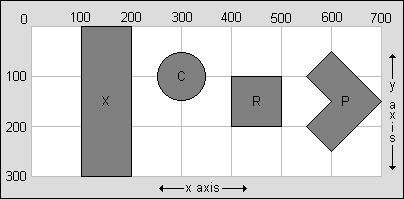
num-list: The number list varies in size depending upon what
hot spot region you want to create.
For a simple x-axis section (all y pixels), use two numbers, as is "left,right".
For a circle, use three numbers, as in "x-center,y-center,radius".
For a rectangle, use four numbers, as in "left,top,right,bottom".
For a polygon, use multiple x,y pairs, as in "x1,y1,x2,y2,....,xn,yn".
In summary:
| Region Type | num-list specification | Sample num-list | area below |
| x-axis section | left,right | 100,200 | X |
| circle | x-center,y-center,radius | 300,100,50 | C |
| rectangle | left,top,right,bottom | 400,100,500,200 | R |
| polygon | x1,y1,x2,y2,....,xn,yn | 600,50,700,150,600,250, 550,200,600,150,550,100 | P |
pixdeg-spec: A list of 'pixel=degree' -- that identifies the
direction (degree) you are looking at various pixel locations. TIP:
Use the interactive pixdeg tutorial to learn
how to use the 'pixdeg' applet parameter.
Namely, you need to provide PMVR a list of: "When you are looking at pixel
'pixel' in the panorama, draw a line in direction 'degree' on the map".
At a minimum, the
first and last pixel/degree need to be specified. More are needed only
if the panoramic is not a perfect panoramic. For example, in the
porch image used above (and the
'pixdeg' param above), pixel zero
is pointed at 14° (relative to the
floor plan image), which is "0=14". And
since this image is a 360° panoramic, the last pixel is pointed in the
same direction, which yields "2304=14". This results in a full pixdeg-spec
of "0=14,2304=14".
The other 'pixel,degree' help to
correct for imperfections in the image.
spot-spec: A "x,y,image" that defines an image and
location of an image overlay (spot). The "image" is displayed centered at
the "x,y" spot. This allows spots to be dynamically
added to a FloorPlan image. For example, "100,100,spot1.gif" says to overlay
the "spot1.gif" image centered at location "100,100" on the FloorPlan.
ll-spec: A comma separated list of 'spot1=spot2' -- that says
'when the user moves the cursor over spot1 in the current applet, hilight
spot2 in the other applet.' For example, "0=2,2=1" says "if the user moves
over hot spot 0 in the current applet, hilight hot spot 2 in the other applet"
and "if the user moves over hot spot 2 in the current applet, hilight hot
spot 1 in the other applet."
hex-color: A color specified in 'RRGGBB' (red/green/blue) hexadecimal
format. For example, 'FF0000' is pure red, '00FF00' is pure green, '0000FF'
is pure blue, 'FFFFFF' is white, '000000' is black, 'CCCCCC' is light gray,
etc. Please refer to
http://www.utexas.edu/learn/html/colors.html
for a list of sample colors along with 'RRGGBB' values.
TIPS: Press d (for debug) in the panoramic above (after
clicking on the panorama first to give it the 'focus') to get useful
left and right pixel/degree information -- then drag around and watch
the numbers change. Very useful for helping to create the
pixdeg-spec. Also, press the left/right arrow keys to move the
image by one pixel (hold shift down at the same time to move by ten pixels).
Press c (for copyright) to display copyright information.
Press v (for version) to display version information.
Press x (for x marks the spot) to display mouse x,y pixel location.
|
6. Native and JavaScript Scripting
|
|
Please review the
Scripting Manual
to understand how all Duckware applets can be scripted by either
using Native Scripting or JavaScript Scripting.
You can also create custom graphical interfaces to control PMVR
by using the ControlPad applet.
Here are some examples that use Native Scripting:
- Hawaii Tour -
A very extensive example of Native Scripting and ControlPad usage.
Take note that the links at the bottom of the web page that switch
scenes were implemented with the ControlPad applet.
- Image Selection -
Changing the PMVR image using the ControlPad applet and an inline script
- Scrolling Controls -
VCR-style controls by using the ControlPad applet
Here are some examples that use JavaScript Scripting:
- Ford House Tour -
A very extensive example of JavaScript scripting.
Take note that the links at the top of the web page that switch
scenes were implemented with JavaScript links in the web page.
- The Idyll Mouse Virtual Tour -
Another extensive example of JavaScript scripting.
Take note that the links at the top of the web page that switch
scenes were implemented with JavaScript links in the web page.
- JavaScript Hot Spots -
Clicking on panorama hot spot calls HTML JavaScript function
- Interactive pixdeg Demo -
The 'pixdeg' interactive demo (adjusts 'pixdeg' dynamically)
Notes: Setting 'link0' will clear all previous links.
Setting 'auto' or 'vauto' will clear the 'user activity' timer (which
allows immediate scrolling again).
Using Native Scripting in a url-target:
When a url-target starts with "set:", what follows (up until the next comma)
is Native Scripting code. The best way to use this feature is to assign
a value to the script variable to run a script. For example:
|
set:script=script.txt:gotoKitchen
|
|
Using JavaScript in a url-target:
When a url-target starts with "javascript:", what follows (up until the next
comma) is JavaScript code that will be executed in the context of your
web page. This is very useful if you want a hot spot to do more than
just link to another web page. The best way to use this feature is to
write a JavaScript function in your web page (that does whatever you want)
and then call the function via the url-target JavaScript code. The
JavaScript Hot Spots example demonstrates this.
Please note that using this feature requires that you add the
MAYSCRIPT applet attribute on your applets as follows:
<applet MAYSCRIPT code="pmvr.class" width=500 height=300>
...
</applet>
|
|
Without the MAYSCRIPT applet attribute, the applet will not be allowed to
execute JavaScript code in the context of a browser.
NOTE: Please read the
12/30/1999 Java Applet Tech Note for a Netscape/MAYSCRIPT
problem that will require that you use MAYSCRIPT on both PMVR and FloorPlan.
pmvrEventHook():
This JavaScript function, when defined in the virtual tour HTML document, allows
you to hook into PMVR events. The function should be declared as:
function pmvrEventHook(action,arg) {
...
}
|
|
Please note that all applets on the web page must have the MAYSCRIPT applet
tag set in order for the pmvrEventHook() function to be properly called. The actions are:
| pmvrEventHook() actions |
| action | Description |
| node |
Node has changed. The 'arg' is the node name. [5.0b]
|
| preload |
Node image was preloaded. The 'arg' is the node name. [5.1b]
|
| outofmemory |
The Java VM is out of memory. [6.0b]
|
The
Virtual Tour Editor uses this event hook
to create links on a web page that gray and bold as you navigate through a tour.
|
7. Recommended Directory/Folder Layout
|
|
- How do you organize your web site for hosting one tour or thousands of tours?
- Do you want the ability to produce tours that can be hosted on both a web site and a CD?
- Is it possible to only use one pmvr.jar no matter how many tours you produce?
Without proper planning, you can quickly run into trouble. But hopefully
by following the concepts described in this section, you will be well on you
way to producing tours that can easily be managed.
The first step is to understand the
Java Applet Security Model.
Please read that section
until you gain an understanding of what files an applet is allowed to access
on a web server vs the local file system.
Next, review the codebase attribute of the
<APPLET> tag.
This attribute is crucial to having
one set of class files no matter how many tours you host.
It is recommended that you host all
of your tours within a directory/folder (or any of its subdirectories). For
example, create a tours directory and place the pmvr.jar file
in this directory. This will be the only class files
that all of your tours will reference, no matter if it is one tour or
thousands of tours. No matter where you place tours within the tours
directory structure, you will use the <APPLET> codebase
attribute to refer back to the class files located in the tours
directory. This greatly facilitates upgrading your Java class files
when a new version of the software is released. Just upgrade one location
and all tours automatically use the new class files.
Consider the following directory/folder layout:
/tours
pmvr.jar
tour1/
index.html -- use codebase=".." to access pmvr.jar
kitchen.jpg
bedroom.jpg
east/
tour2/
index.html -- use codebase="../.." to access pmvr.jar
gulf.jpg
beach.jpg
tour3/
.
.
potentially many more tours
|
|
Any HTML files that need to access the pmvr.jar just have an archive and codebase
attribute in the <APPLET> tag
that uses a relative URL to point back to the class files. For example,
the codebase attribute in <APPLET> tags in
/tours/tour1/index.html will look like:
<applet archive="pmvr.jar" codebase=".." code="pmvr.class">
. . .
</applet>
|
|
A codebase of ".." is needed within /tours/tour1/ to
reference the class files back one directory in /tours/.
This works because ".." means 'go back one folder/directory'.
As another example, the codebase attribute in the <APPLET> tags in
/tours/east/tour2/index.html will look like:
<applet archive="pmvr.jar" codebase="../.." code="pmvr.class">
. . .
</applet>
|
|
Where a codebase of "../.." is needed within /tours/east/tour2/ to
reference the class files back two directories in /tours/.
TIP: Make sure that you use relative URL's in all of your HTML when
accessing images, other HTML files, etc as that will allow your tour to be
easily placed onto a CD for demonstration purposes (and easily tested on
your local file system before being placed onto a web server). Otherwise your
tour will probably only work on a web server, if you use absolute URL's.
For an real world example of codebase being used, please visit
http://www.idyll-by-the-sea.com/hawaii/index.html
and view the html source. This site places the class files in the root
of the web server and references them through the codebase.
|
8. No Nonsense License Agreement
|
|
PMVR is shareware. That means that you may try it for free
to see if it works for you.
If you like the software enough to keep using
it, you must pay for it. If you find
anything wrong with the software, let me know and I will try to fix the
problem immediately. My entire liability for your use of this software
shall not exceed the amount you paid for the software.
You may not reverse engineer or decompile the software.
You may not modify the software in any way.
The software may not be used on adult sites nor to display adult material.
License violations will result in license termination, forfeiture of license fees, and possible prosecution.
|

10. Troubleshooting Guide
|
|
Are you having trouble getting the PMVR or FloorPlan applets to work?
1) The first step is to read through the
Java Applet Technical Notes
to see if the problem you are experiencing is a known technical issue.
Otherwise, the problem you are running into may be described below.
If not, please contact us for help.
2) Hilight arc on FloorPlan does not appear -- This is caused by an
HTML coding error. (1) Do you have a
pixdeg applet parameter defined for the PMVR
applet? Is it properly formatted (a comma separated list of
pixel=degree)?
(2) Do you have a name="FloorPlan" attribute
defined in the HTML for the FloorPlan applet? This is needed in order
for the PMVR applet to find the FloorPlan applet. (3) Are you
using the MAYSCRIPT attribute? If so, the attribute must be used on
both applets
(see the 12/30/1999 Java Applet Tech Note).
(4) Do you have
the x and y
FloorPlan parameters defined? (5) Compare your HTML code to the
trial readme.html HTML, which has a working FloorPlan.
3) Hilight arc on FloorPlan 'jumps around' -- This is caused
by an error in the PMVR pixdeg applet parameter. The most likely
cause is that the last 'pixdel=degree' in the pixdeg specification
is not the pixel width of your panorama, which it should be.
Please refer to the pixdeg tutorial for details.
Another possibility is that you have two browser windows open to the same virtual tour.
4) A link (hot spot) is formatted properly, but does not work -- Verify
that you have increasing numbers in the link#
parameters with no gaps in the numerical sequence, with numbers starting at 0.
For example, if you have link0, link1, link2, and link2 defined, you need
to change the last link2 (a duplicate) to link3. Or a gap where you have
link0, link1, and link3 (a gap) defined, you need to change link3 to link2.
5) "Image not accessible" displayed in applet --
The image you have specified
in the PMVR image parameter violates the
Java Applet Security Model.
6) "Image Error" displayed in applet --
There was an error reading/locating the
image specified in the PMVR image
parameter. (1) Verify that the image exists and is readable by
the browser that you are using -- by creating a URL that directly points
to the image. Can the browser view the image? (2) Check the
spelling of the image name. Remember that some web servers treat file
names as case sensitive. Does the spelling and case of the image
file on the server match what is specified in the applet parameter?
The 09/08/2000 Java Applet Tech Note
has another possible cause.
|
11. Selected Sites Using PMVR
|
|
Here is a partial list of sites that are using PMVR. See how others
are using PMVR for ideas!
Euro Panoramas
- 360° panoramas from around the UK and Europe
Campus Tour
- Campus Virtual Tours at the University of Western Ontario
Skyshot
- Skyshot elevated photography
Virtual Basílica
- Visita Virtual panorámica a la Basílica
L&D Tiles
- Take a virtual showroom tour
Weymouth Panorama
- Weymouth and Portland Panorama on the Jurassic Coast
APB Internet
- Production of interactive virtual tours of high quality and pages Web in Malaga, Spain
Westcliff Hotel
- A virtual tour of Westcliff Hotel
Club Marena
- Baja Real Estate at Club Marena
Hawaii Vacation Tour
- extensive tour from a Hawaii vacation
Idyll-By-The-Sea
- extensive tour of a gulf-front Florida property
Virtual Karlstadt
- Very nice virtual tour of downtown Karlstadt
Virtual Volusia
- Explore the beaches of Volusia county in Florida
Lyme Regis
- 'The Pearl of Dorset' on the Jurassic Coast, the first natural site in England to be awarded World Heritage Status by UNESCO
City Panoramas
- 360° panoramas of German cities, virtual tours and links to city-panoramas world-wide
Stadt Münster vom LVM Turm
- City cathedral of the LVM tower
Flamingo Cottage
- Rental cottage located in Santa Rosa Beach, Florida
PanoramicTour UK
- a dedicated photographic group creating virtual tours through panoramic images
Absolute Robeo
- click on the '360' link to see some 360 panoramas
Taverne 't Cigalleke
- panoramas of an eating establishment in Belgium
Idealista
- very interesting panoramas of Spain
Donegal Self Catering Cottages Ireland
- Vacation rental cottages in Donegal Ireland
Gardens Virtual Tour
- Royal Botanic Gardens, Kew
Heart'n Soul Music Theatre
- Panorama in The Albany Theatre Deptford
Saint-Tropez
- Panomics of St-Tropez - France.
i/ota Internet Services
- virtual tour provider in Fort Pierce, Florida
Brighton, UK
- Go on a virtual tour of Brighton, UK
Virtual West Harptree
- A West Harptree Photo Collection Featuring a Virtual Tour of the Village
Cross Canada
- Tour of Canada's leading aftermarket auto replacement distributor
City of Farmington
- Take a tour of the City of Farmington, Michigan
Amanda Central
- Panoramas of downtown Vancouver, BC Canada
Virtual San Marcos
- Panoramas of San Marcos, Alkek Library, etc.
Valley Wedding Chapel
- Virtual Tour of Historical Winchester's Wedding Chapel
Virtual Sidon
- Panorama of the seaport of Sidon, Lebanon
Beirut
- Panorama from apartment overlooking Beirut
Stadt Münster
- many panoramas of the city
NetObjects Fusion
- how to add panoramas to your site
Trentham Golf Course
- panorama from the 5th and 8th tees taken at sunset
US Coast Guard
- used on their Intranet for training purposes
Please contact us if you want your site
added to this list.
Help producing panoramas
Pano Help
- Tips, techniques, and articles to help you create incredibly detailed panoramas
The Guide to Panoramas
- A guide to panoramic photography
Photo Stitching
PhotoVista
- photo stitching software from iSeeMedia
The Panorama Factory
- Freeware/shareware image stitching software
Camera Related
Digital Photography Review
- Reviews of all the latest digital cameras
Steve's DigiCams
- Lots of information about digital cameras
Imaging Resource
- Site for comparing digital cameras
Digital Camera Info
- Digital Camera Reviews and Price Comparison
HTML Programming
HTML tags
- Microsoft's HTML tag reference
Java Applet tag reference
- Sun's HTML <applet> tag reference
JavaScript Guide
- Netscape's JavaScript Reference
Other
ShortCourses
- ShortCourses in Digital Photography
The Panoramic Network
- Lots of panoramic related info
NetObjects Fusion
- Adding panoramas to your web site
Virtual Tour Solution Providers
Refer to our list of Resellers
|
Copyright © 2000-2009 Duckware
|
|